Language: EN | RU
Chocolate Box (abbreviated as CBox, pronounced "see-box") is the main level editor for Fable 1 (Fable TLC and Fable Anniversary).

The name "Chocolate Box" is quite fitting: CBox is one of the essential tools that made Fable modding possible, and it has many devoted fans.
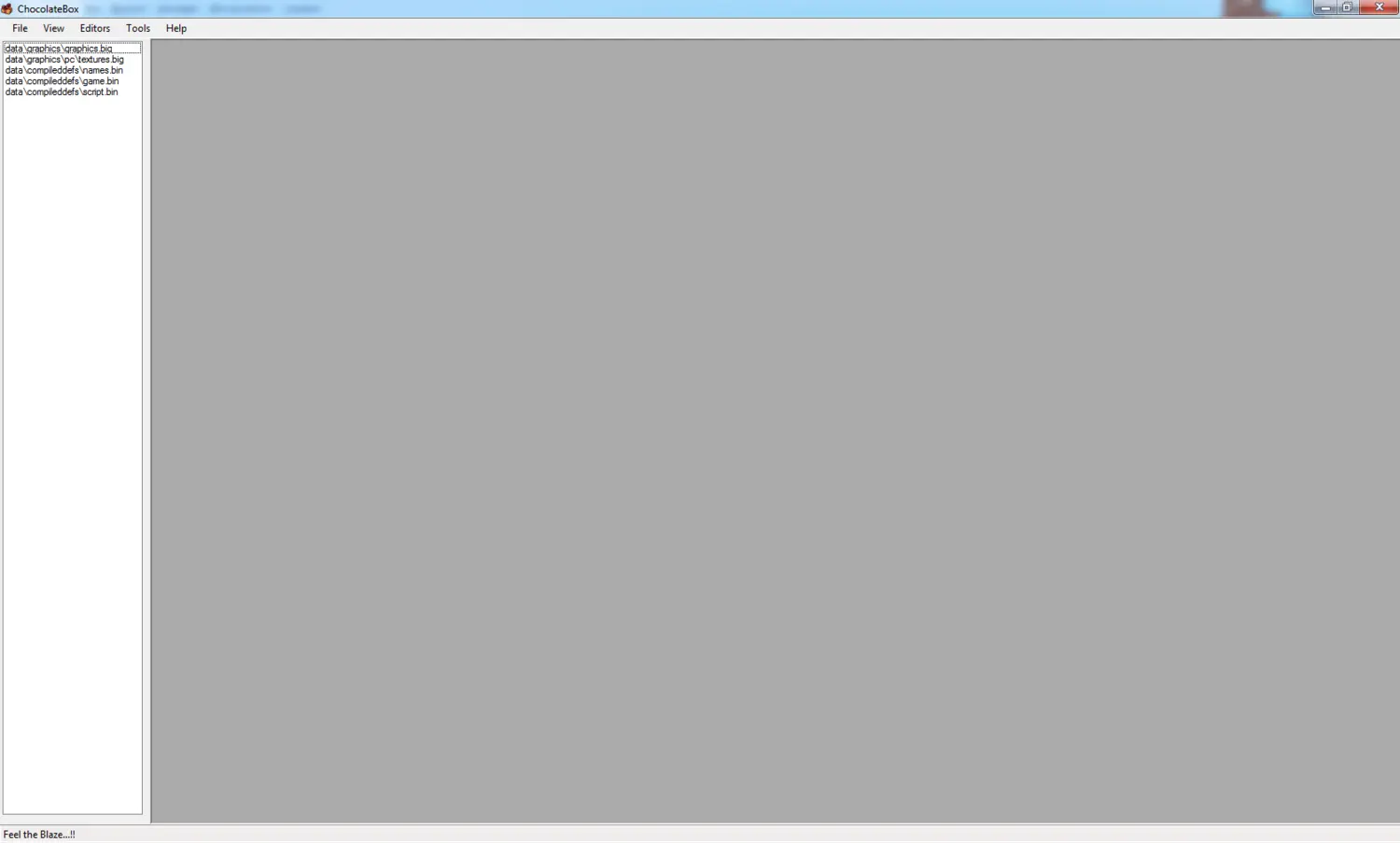
Our Fable modding guide contains many articles about using this wonderful program.
CBox Features
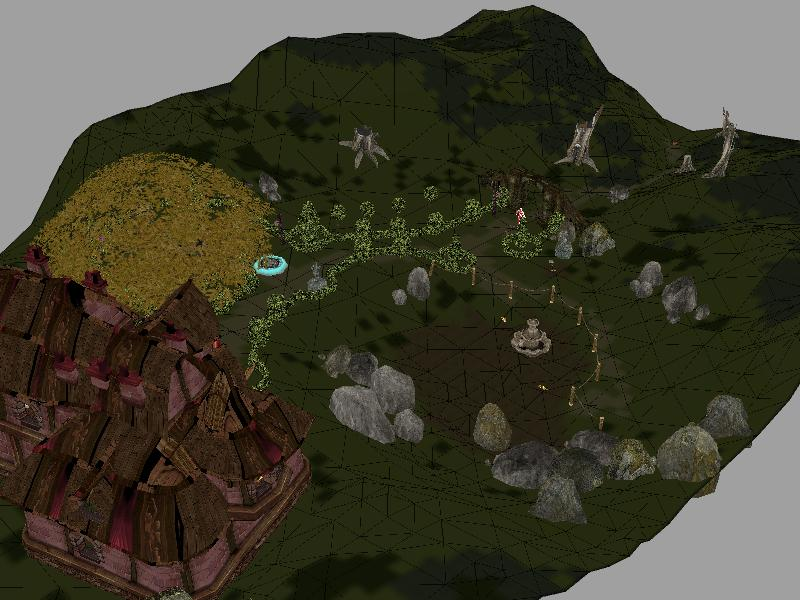
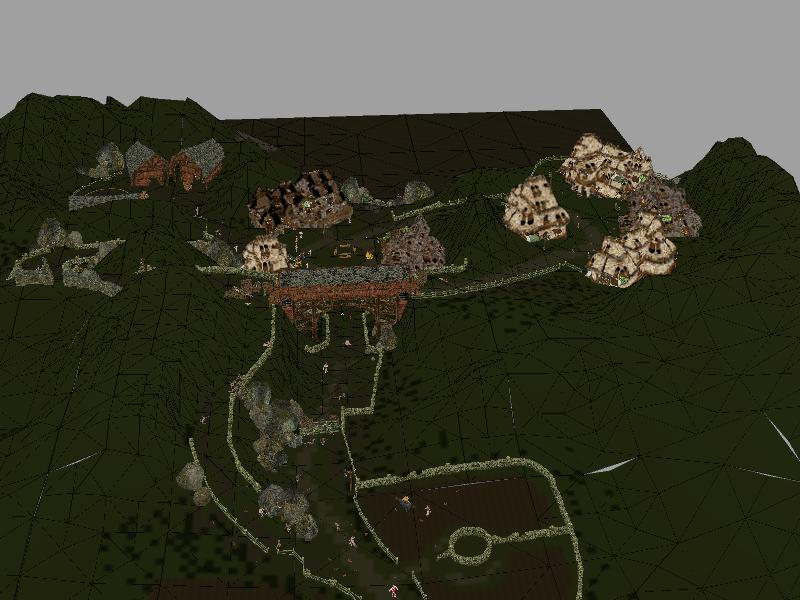
- Extracting FinalAlbion.WAD.
- Working with extracted .tng location files.
- Editing locations in a simple and intuitive 3D editor (Region Editor, "World" mode).
- Editing invisible boundaries — areas that the player character can or cannot enter. (See "Walk" mode.)
- Creating and installing mods.
- Merging mod files.
- Semi-automated creation of new objects in the game files using Object Builder.
- Everything Fable Explorer can do, but in a different interface.
What's Included
The archive contains nine versions of CBox. At some point, we combined them into a single archive for convenience.
Newer Versions
- Version 1.3.6.145, dated July 10, 2009. Its architecture (x64 or x86) is unknown, although it definitely runs on 64-bit Windows 7. This build was tracked down with great difficulty by Alexey Skok. An exclusive — you probably won't find it anywhere else! It displays the number of rendered objects in a location (depending on the position of your camera), adds a "Navigation" tab to Region Editor, and introduces a new SeesMap option in the configuration file. When set to true, it displays locations as a single connected world, similar to the location-merging mod. (And yes, we also noticed that this build is dated July, but ultimately decided to go by the version number rather than the date.)
- Version 1.3.0.100, dated November 19, 2009, in three variants: the original builds (x86 portable and x64 installer) and a repack by Imperator (x64 portable).
- Mac version (build unknown, because we don't have the money for a Mac. If you find out, let us know).
Older Versions
For historical purposes, we have also included several earlier builds in the archive. They are dated as follows:
- Version dated February 2, 2009.
- Version dated March 25, 2009.
- Version dated July 10, 2009.
- Version dated October 16, 2009.
Which Version Should You Choose?
Start with the version that matches your system architecture (x64 or x86). If one version does not run, try another — we have even included older builds as a last resort.
Copyright and Credits
- The original versions were created by BayStone (fabletlcmod.com).
- The portable repack of the x64 version was made by Imperator (FableGame.INFO).
- The Mac version was created by LoopLoop (fabletlcmod.com).
- The rights to this article belong to Torionel (fablegame.info). If you reproduce it, you must include a link to the original source.
- This article was compiled using posts by BayStone and other modders, along with the author's own material.
System Requirements
The following is required to run the program:
- MS Windows or macOS.
- Fable TLC or Fable Anniversary must be installed.
Windows additionally requires:
- Microsoft .NET Framework 2.0 or later.
- Microsoft Visual C++ SP1 Update.
- DirectX 9.0c.
Mac requires:
- An Intel processor.
- X11 (I am not entirely sure what this is. According to the author, it may already be installed on your computer; otherwise, it can be downloaded).
- 370 MB of memory.
- Mono Framework or .NET Framework.
Installation and Launch
Installation
- For the installer version, follow the instructions provided by the installer.
- For the portable version, simply extract the archive to the folder of your choice.
After installation comes the initial configuration stage. A surprising number of modders have stumbled here — unnecessarily, because there is nothing particularly difficult about it.
Initial Configuration
By default, CBox looks for your copy of the game at the following path:
- G:\Program Files\Microsoft Games\Fable - The Lost Chapters
There is a good chance you do not like programs deciding on their own that they belong on drive C — or anywhere else — without asking. That is a perfectly normal reaction for a healthy adult (unless you are using a laptop with a single unpartitioned drive). The situation here is similar: CBox has already decided where the game "should" be installed.
In that case, open the ChocolateBox.ini file in the CBox folder with any text editor such as Notepad or Notepad++ and change the settings manually.
At the very beginning of the file, you are interested in these lines:
- FableRegistry = Software\Microsoft\Microsoft Games\Fable\1.0
- ;MyPath = G:\Program Files\Microsoft Games\Fable - The Lost Chapters
The first tells the program where to look for the game in the Windows Registry. The second tells it where to look for the game on your drive.
Start by changing the game path to match your own installation — and watch the syntax, because, you know, some people make typos and then complain :D. If that is not enough — and it will not be enough for the Steam version — you will need to find the appropriate registry keys and enter the correct path in the first line, again preserving the syntax.
First Launch
When you launch the utility for the first time, a window will appear with a message ending in something like "...fix it?". Click "OK".
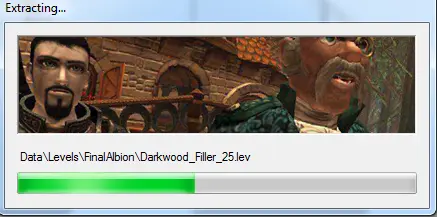
CBox will then begin extracting the WAD file. The program will handle everything automatically.
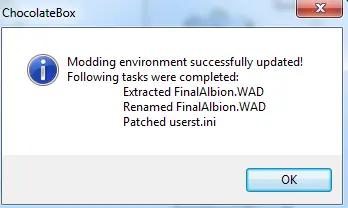
Once the process is complete, a FinalAlbion folder containing the extracted location files will appear inside the Levels folder in the game directory, while FinalAlbion.wad will be renamed to _FinalAlbion.wad. Fable Explorer will not recognize it unless the underscore is removed. The game itself, meanwhile, will use the extracted folder when it cannot "see" the archive.
Hotkeys
CBox has a very convenient set of hotkeys:
- Use the arrow keys to move up and down through the entries in the selected game archive.
- Mouse wheel (scroll) — zoom in and out of locations or objects.
- Mouse wheel (press and move the mouse) — rotate the location, or more precisely, the camera.
- Shift + mouse wheel (press) — "fly" around the location.
- Right-click one of the arrows while an object is selected — rotate the object around the selected axis.
- Delete (Del) — delete the selected object.
- Ctrl+S — save changes, just like in most other programs.
- F11 — work with the location in fullscreen mode.
- Select an object in the location, hold Ctrl, and drag it — the object will be duplicated.
- Hold Ctrl while selecting objects — multi-selection mode.
- Double-click an object in the location with the left mouse button — select it and quickly move the camera to that object.
Bugs
Like many other tools in the Fable modder's arsenal, CBox is full of bugs — which is somewhat ironic, considering that it is also literally a "chocolate box" full of bugs, just not the chocolate kind.
- It may crash for no apparent reason. Just restart it and save your work frequently.
- Objects in the level editor may stop responding to clicks. Restart the program.
- The quick-save hotkey (Ctrl+S) does not always work. When it does, a message appears confirming that the save was successful.
- The camera may get stuck and move extremely slowly.
- It does not handle merged locations particularly well.
- Name search finds only the first match, unlike Fable Explorer.
- And so on.
More on the topic
- CBox installation video on our channel (by Roman Potapov).
- CBox tutorial video on our channel (by Torionel).
- Fable Modding Guide
- Running CBox with the Steam Version of Fable: The Lost Chapters.