Language: EN | RU
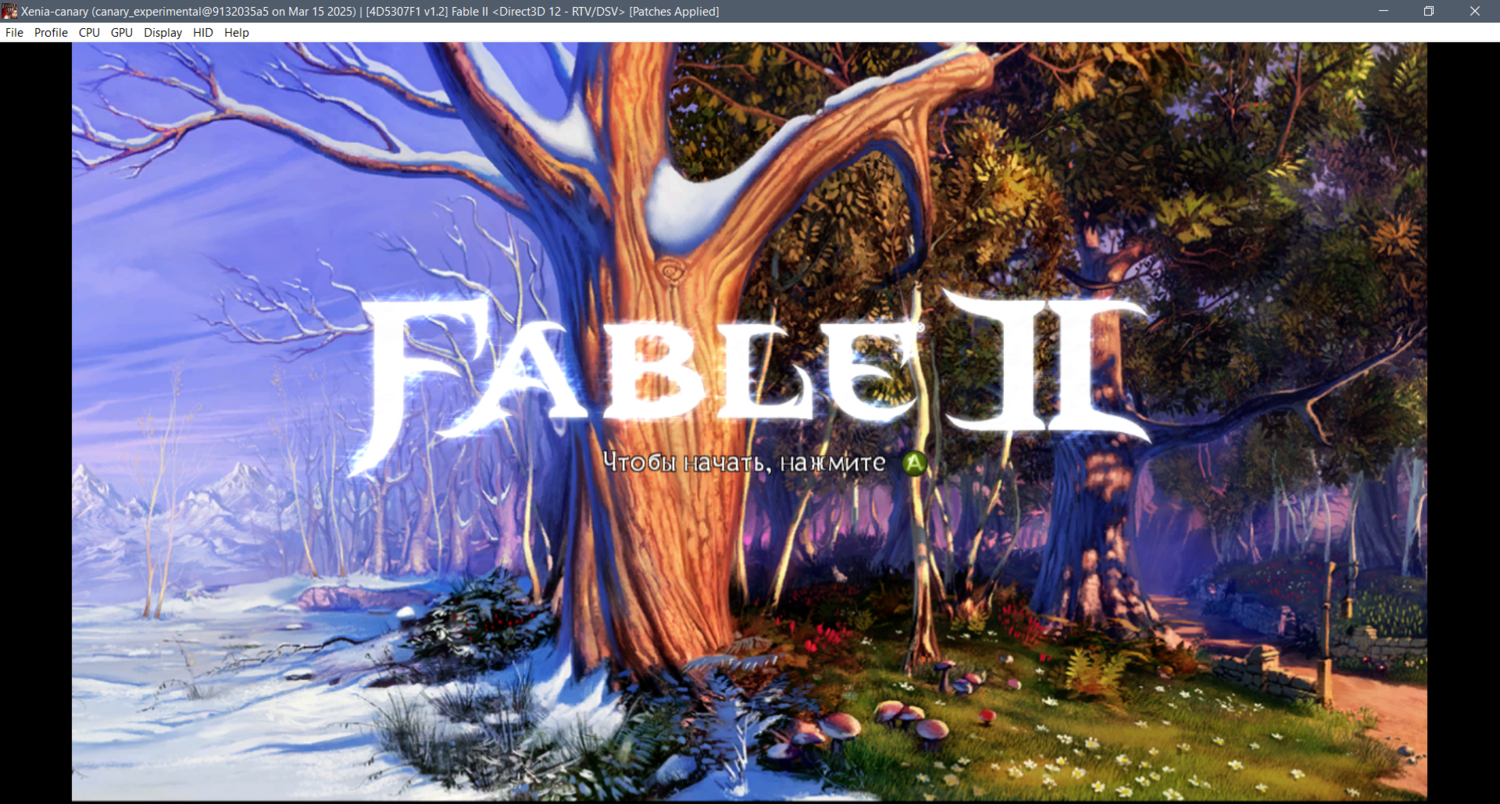
How to Play Fable 2 on PC with the Xenia Emulator
You can play Fable 2 on PC in 2026 using Xenia, an Xbox 360 emulator. This detailed FableGame / Fable Universe guide explains how to set everything up.
Background
As you probably know, an official PC version of Fable 2 does not exist, and 17 years after the game's release, it is unlikely that one ever will. For this reason, playing this legendary entry in the series through an emulator is a reasonable alternative.
Fable 2 has been able to run on Xenia since at least 2017, but for most of that time emulation suffered from serious bugs, including black character textures, disappearing terrain, and other issues. Tests of the game were repeatedly published by YouTube channels dedicated to console emulation.
With newer versions of the emulator and additional patches, Fable 2 became more or less playable in early 2022.
However, there are several important things you need to know before playing Fable 2 on a computer.
Emulator System Requirements
The current recommended system requirements for Xenia are:
- Windows 10 x64 or later
- CPU: 4th-generation or newer 64-bit Intel Core i5/i7 processor with AVX(2) support
- GPU: GTX 980 Ti or better
- At least 6 GB of RAM
- Microsoft Visual C++ Redistributable for Visual Studio 2015, 2017, and 2019
The minimum requirements are Windows 7, 4 GB of RAM, and a graphics card with Direct3D 12 or Vulkan support. Good performance on operating systems older than Windows 10 or on integrated graphics is not guaranteed.
"There are no magical workarounds to make Xenia run on your potato computer," the developers joke. Unfortunately, a reasonably powerful PC really is necessary for this kind of emulation.
Which Version of Xenia You Need and Where to Download It
Xenia comes in two main variants: the regular Xenia and the separate experimental branch known as Xenia Canary — as if Xbox 360 emulation itself were not already one giant experiment. These are two different development branches, and both receive regular updates.
Xenia has an official website, but the main place to download either version and keep track of updates is the GitHub repositories for the two projects.
| In simple terms: GitHub is the world's most popular platform for sharing software source code. A repository is essentially a storage space for a particular program's code, including previous versions and releases. |
There are guides for running Fable 2 with both regular Xenia and Xenia Canary. The version you need therefore depends on the guide you are following.
This guide uses Xenia Canary because it supports third-party patches that can fix various bugs. In any case, it is generally best to download the latest available build.
There are two ways to do this. The first is to visit the official repository of the project you want:
- original Xenia repository (the emulator itself can be downloaded from the releases section — choose xenia_master.zip);
- Xenia Canary repository (downloads are likewise available from its releases section — choose xenia_canary.zip).
Patches for Xenia Canary are stored in a separate repository called game-patches. You will need to download these as well.
Alternatively, you can download the emulator, manage its settings and patches, and even back up your save files through a third-party application with a convenient graphical interface called Xenia Manager. If you prefer this method, you only need to download the manager itself from its repository.
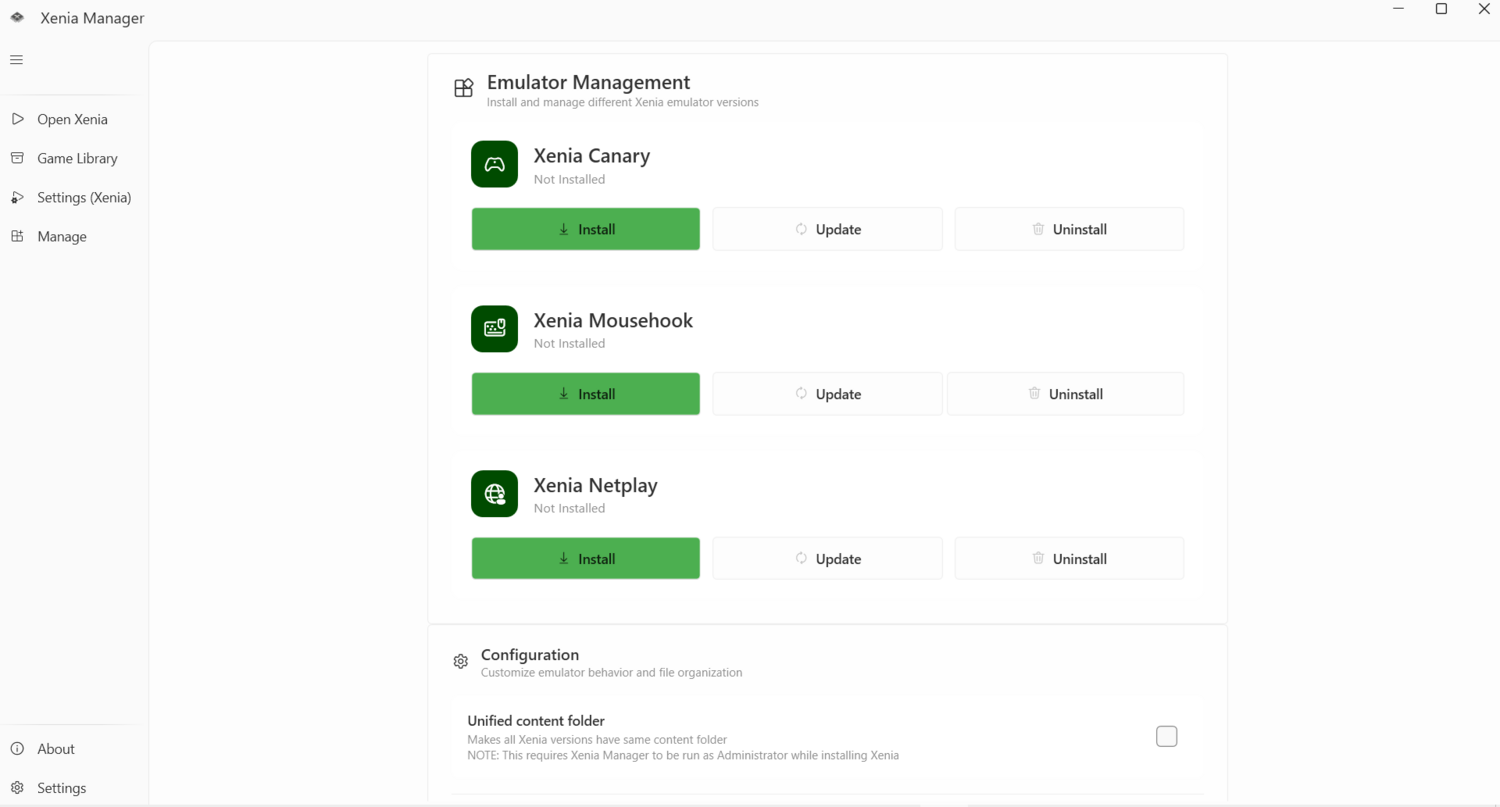
The emulator can then be installed from the Manage tab.
Which Version of Fable 2 You Need
Fable 2 was released in several editions. Here is a comparison.
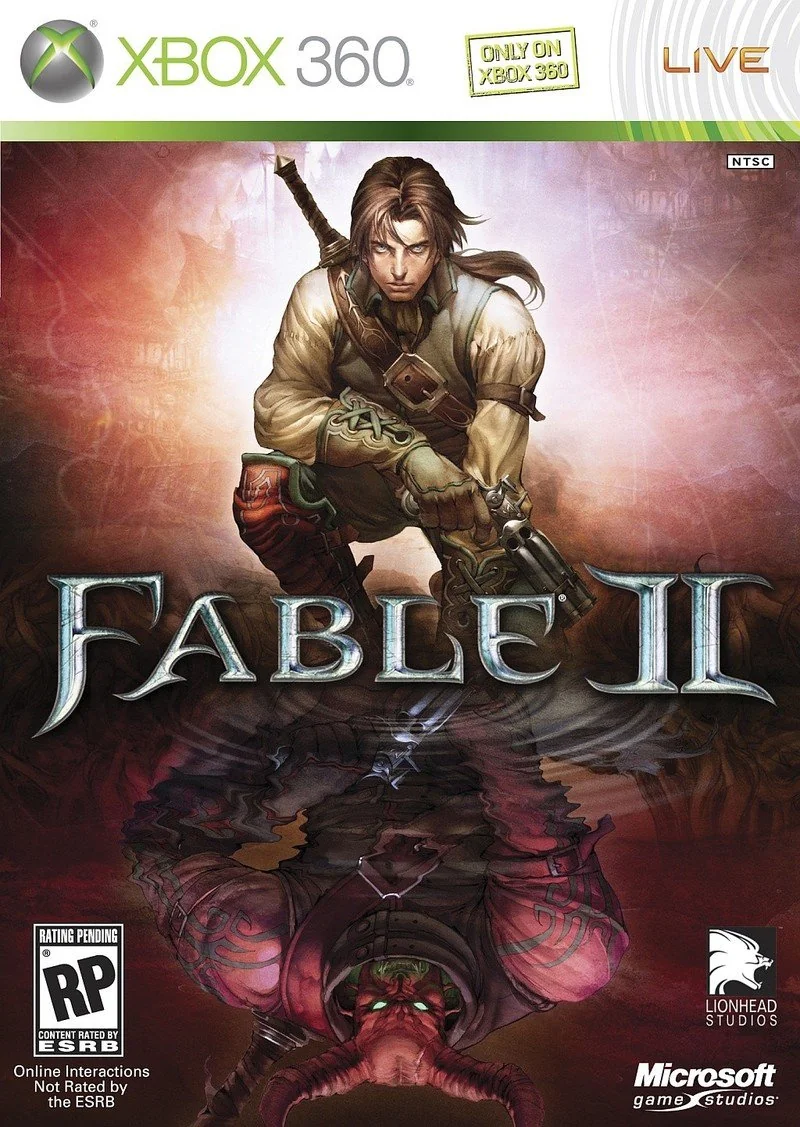
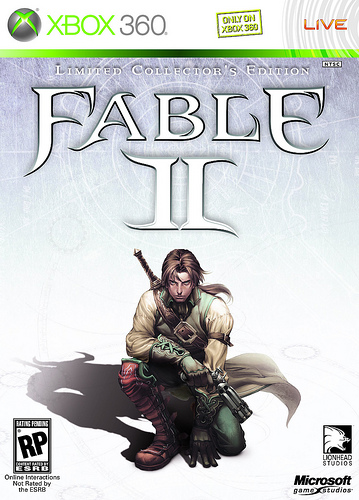
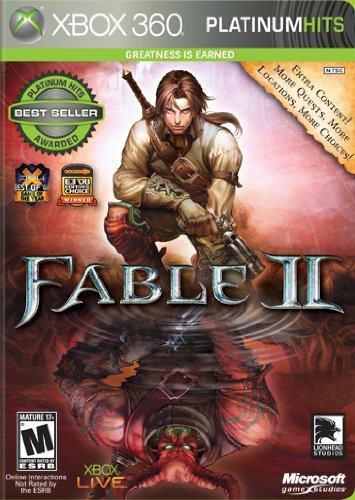
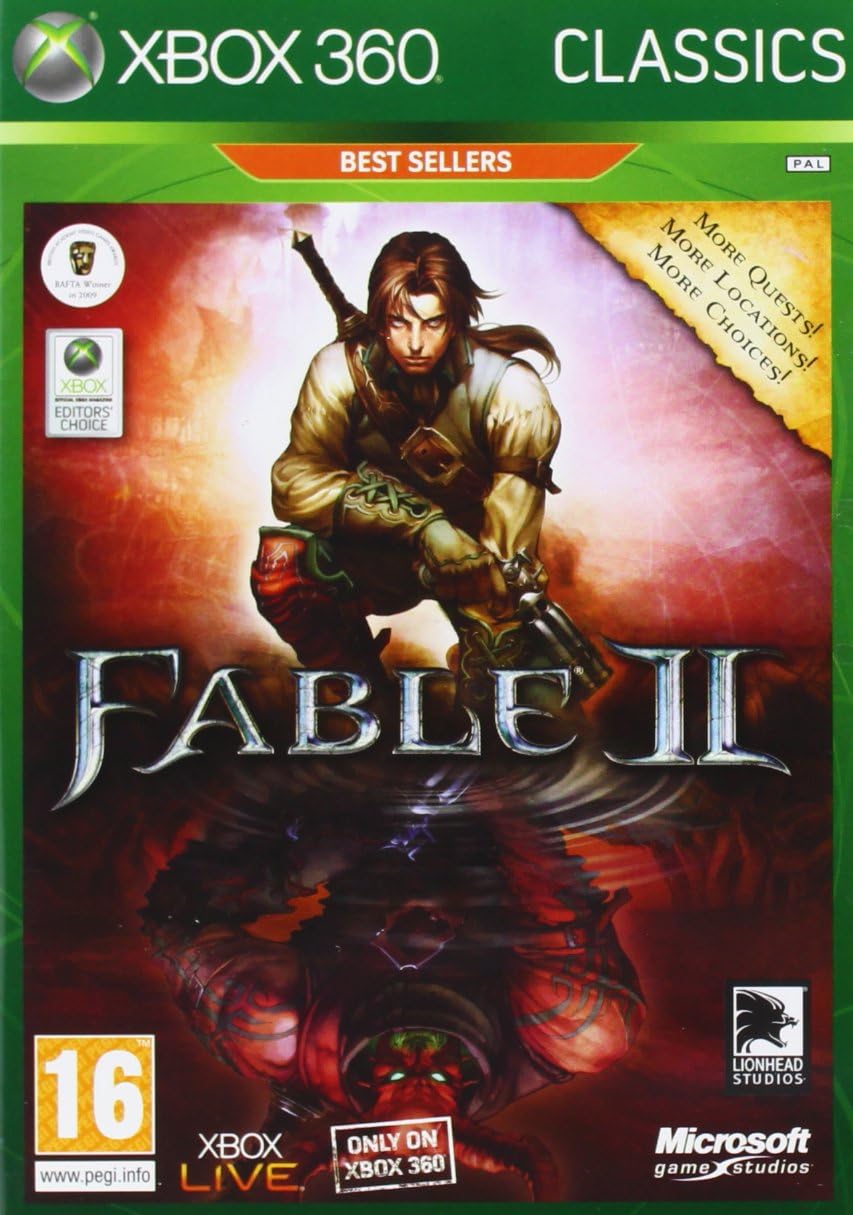
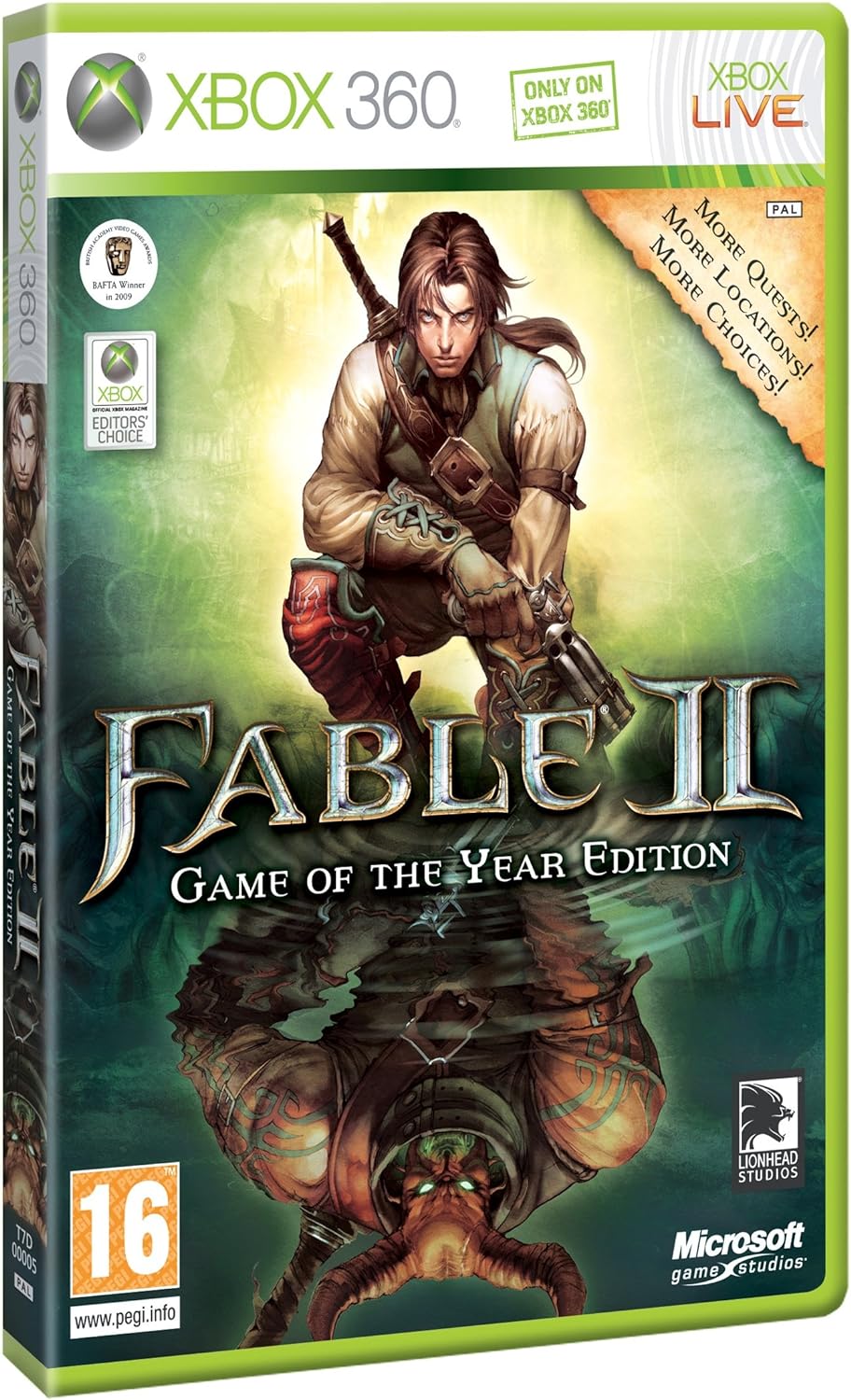
| Original Fable 2 | Fable 2: Limited Collector's Edition | Fable 2 Platinum Hits / Fable 2 Classics | Fable 2: Game of the Year Edition (GOTY) |
| Red cover | Grey cover | Red cover with an additional label | Green cover |
| No DLC included | Included an additional DVD, concept art, a card for downloading exclusive content, and a trial subscription to Xbox Live Gold | Includes the Knothole Island and See the Future DLC | Includes the Knothole Island and See the Future DLC |
You can try emulating any of these editions. The important thing is that your version matches the one used by the author of the guide you are following. Naturally, Xenia Canary with its patches generally offers the best chance of successful emulation, so Canary-specific guides are the best place to start.
Where to Get the Game
The emulator developers recommend making a copy of a legally purchased game. The game must first be installed from the disc onto an Xbox 360 and then transferred to your PC. You will need a USB drive with at least 16 GB of storage.
It is also technically possible to use a ready-made ISO image of the disc, but the developers emphasize that obtaining copyrighted game images illegally should not be used as a method of acquiring the game, and we do not recommend it either. Xenia's developers also explicitly prohibit using the emulator for piracy.
How to Run the Game
First, download Xenia Canary using either of the methods described above: manually or through Xenia Manager. You then need to configure the emulator and the Fable 2 patches.
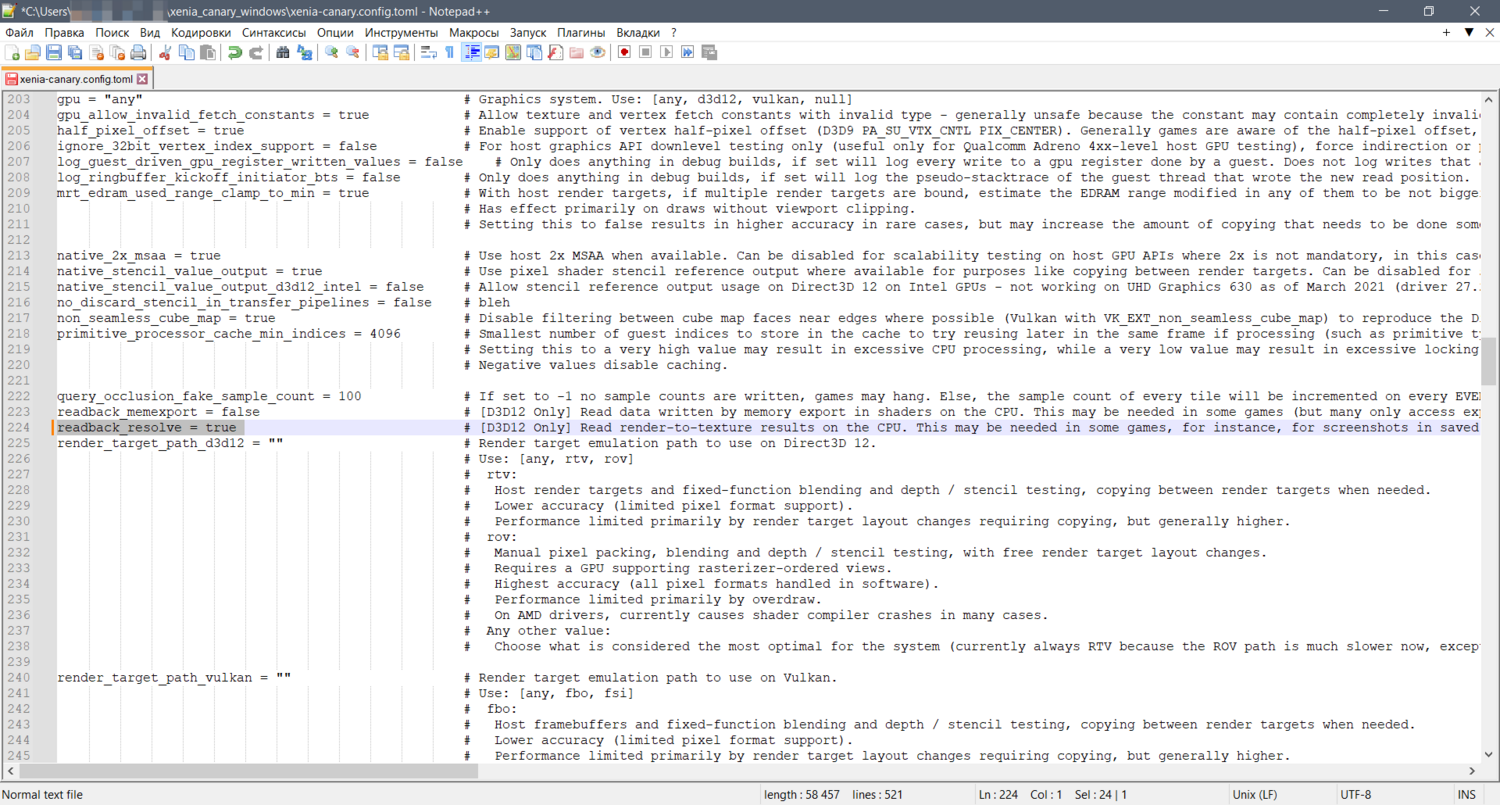
Manual method. Extract the emulator into a separate folder for convenience. Launch xenia_canary.exe once and then close it. This will create a configuration file called xenia-canary.config.toml in the same folder. Open it with any text or code editor, such as Notepad or something more advanced like Notepad++, and change the required values.
To avoid the bug that causes the Hero and dog to appear with black textures, well-known community member Andrey Kot recommends setting readback_resolve to true and saving the changes.
Next, download the game-patches.zip archive and extract it into the same folder. Inside the archive is a patches folder containing modifications for various games.
Four of these patch files are for Fable 2, including two for the complete GOTY and Platinum editions. To prevent the emulator from slowing down during startup, it is best to leave only the patch file that corresponds to your version of the game.
| Tip: the standard English version of Fable 2 is displayed in Xenia as version 1.0, while GOTY is shown as version 10.1. The Russian GOTY edition is displayed as version 1.2. |
Next, we follow the steps from the best-known guide on the YouTube channel of the modder who created some of these patches and launch the GOTY edition.
Open the patch file named 4D5307F1 - Fable II (GOTY_Platinum Edition).patch.toml in Notepad++.
Note that every patch begins with the [[patch]] separator, followed by several parameters such as its name, author, and other information. To enable a patch, change its is_enabled value from false to true, while preserving the existing syntax.
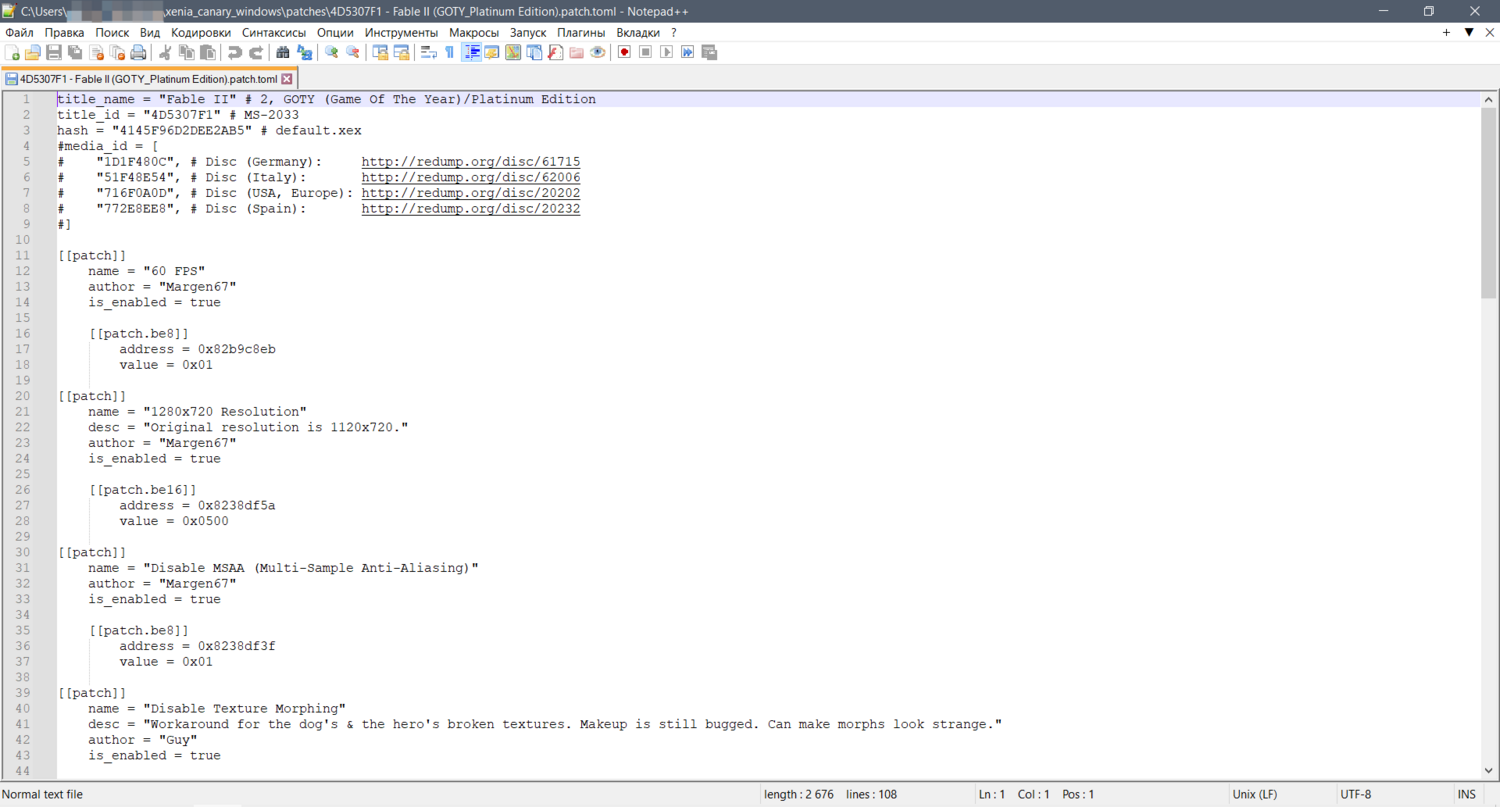
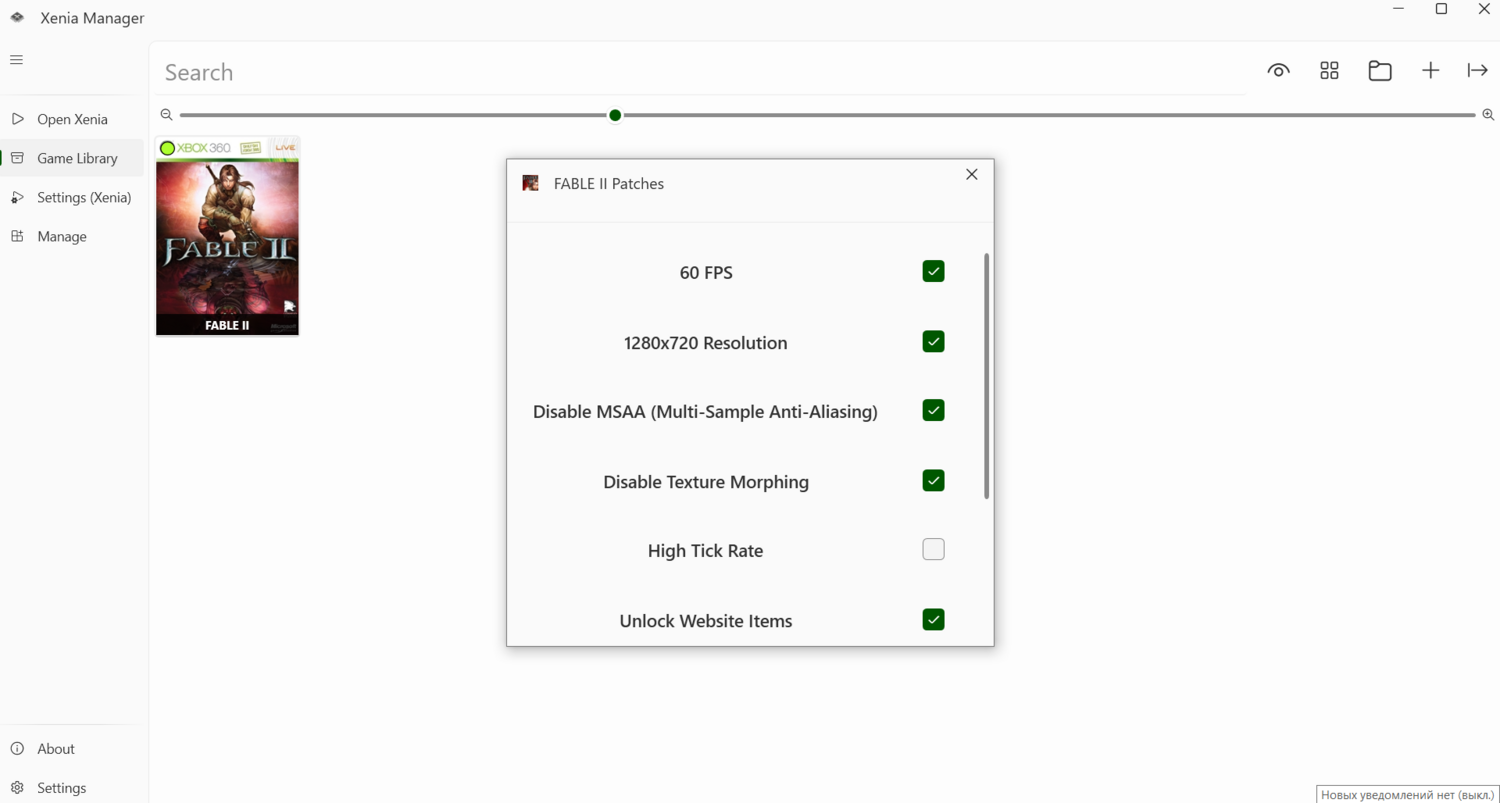
Based on his own experience, the author of the video recommends enabling almost all of the patches:
- "60 FPS"
- "1280x720 Resolution"
- "Disable MSAA (Multi-Sample Anti-Aliasing)"
- "Disable Texture Morphing"
- "Unlock Website Items"
- "Unlock Collectors Edition Content"
He also literally forgot to include one patch when the release was published, so we need to copy and paste it manually. There is nothing complicated about this — simply add the following lines to the end of the file:
|
[[patch]] [[patch.be8]] |
The final remaining patch, High Tick Rate, is recommended only for powerful hardware.
We will follow the author's recommendations, with one exception: tests by Andrey Kot showed that Disable Texture Morphing is better left disabled to avoid the same texture bug. Once you have made the changes, save and close the patch file. The emulator is now configured.
Using Xenia Manager. After downloading the emulator, add Fable 2 to your library from the Game Library tab.
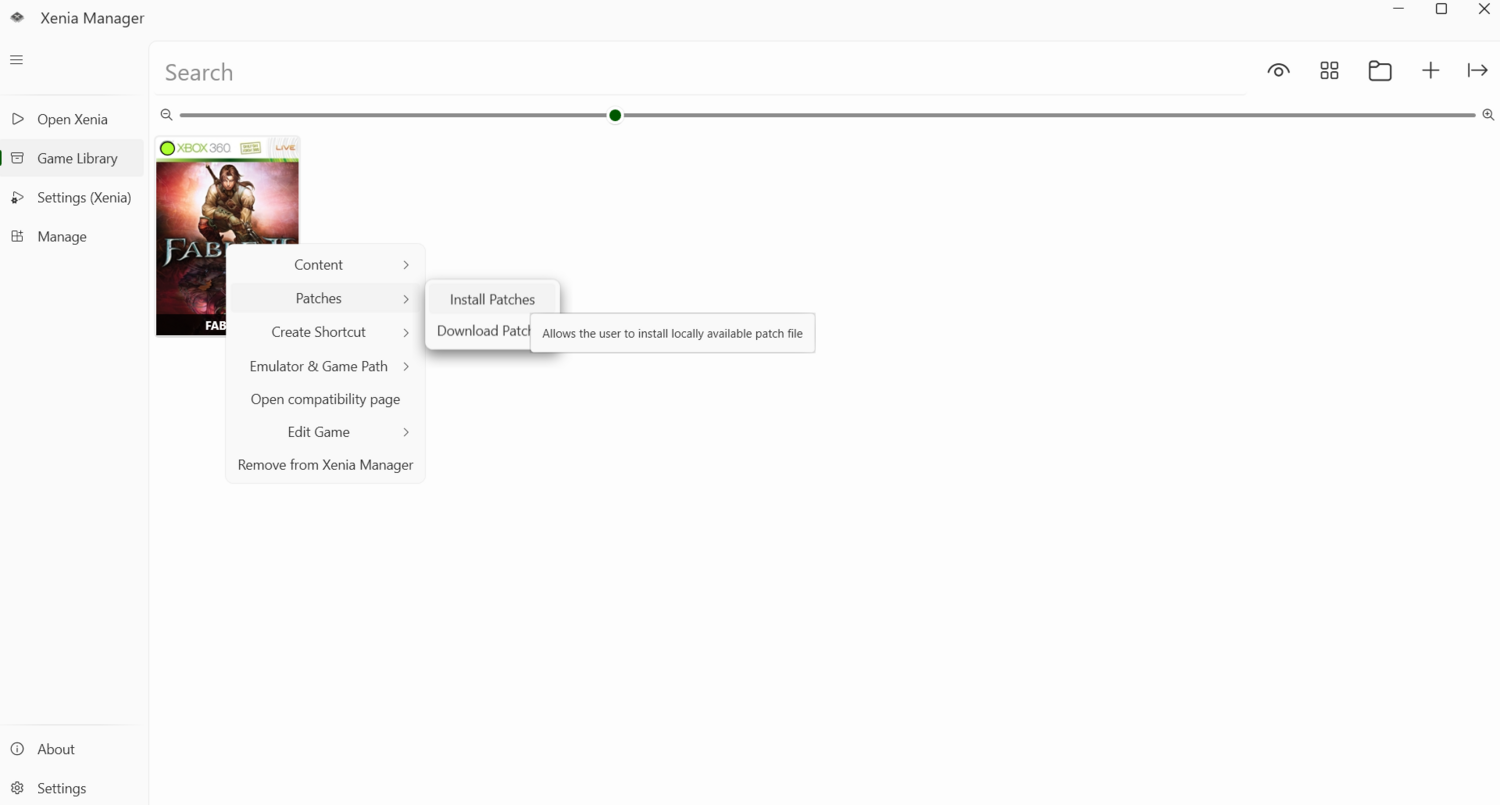
You can also install, download, and enable all of the required patches listed above from the same interface.
After saving all settings, try launching the game. You can start the emulator directly with xenia_canary.exe or through Xenia Manager using the Open Xenia button.
When Xenia is launched for the first time, it will prompt you to create a user profile.
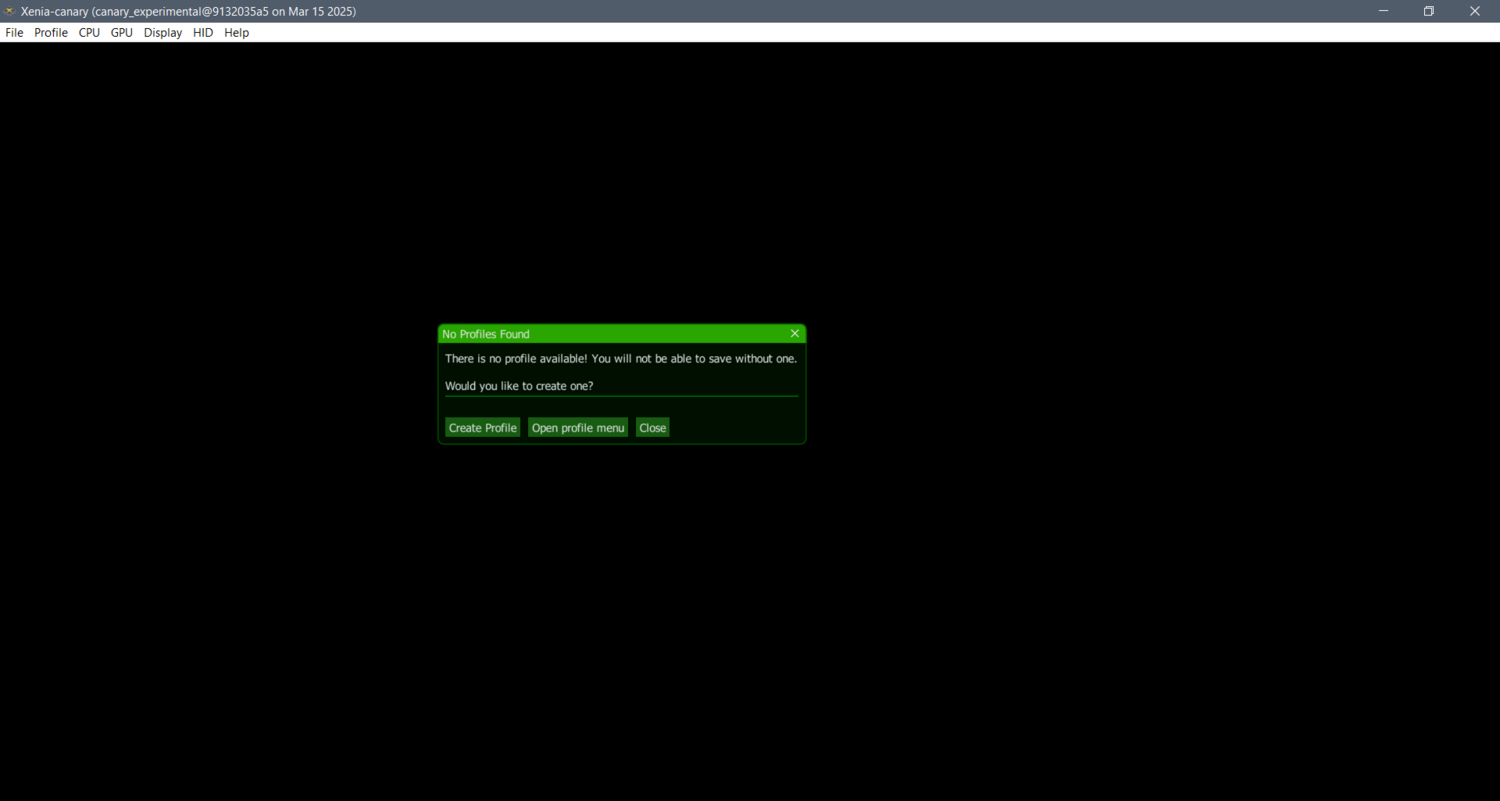
To launch Fable 2, select File -> Open and choose the game file.
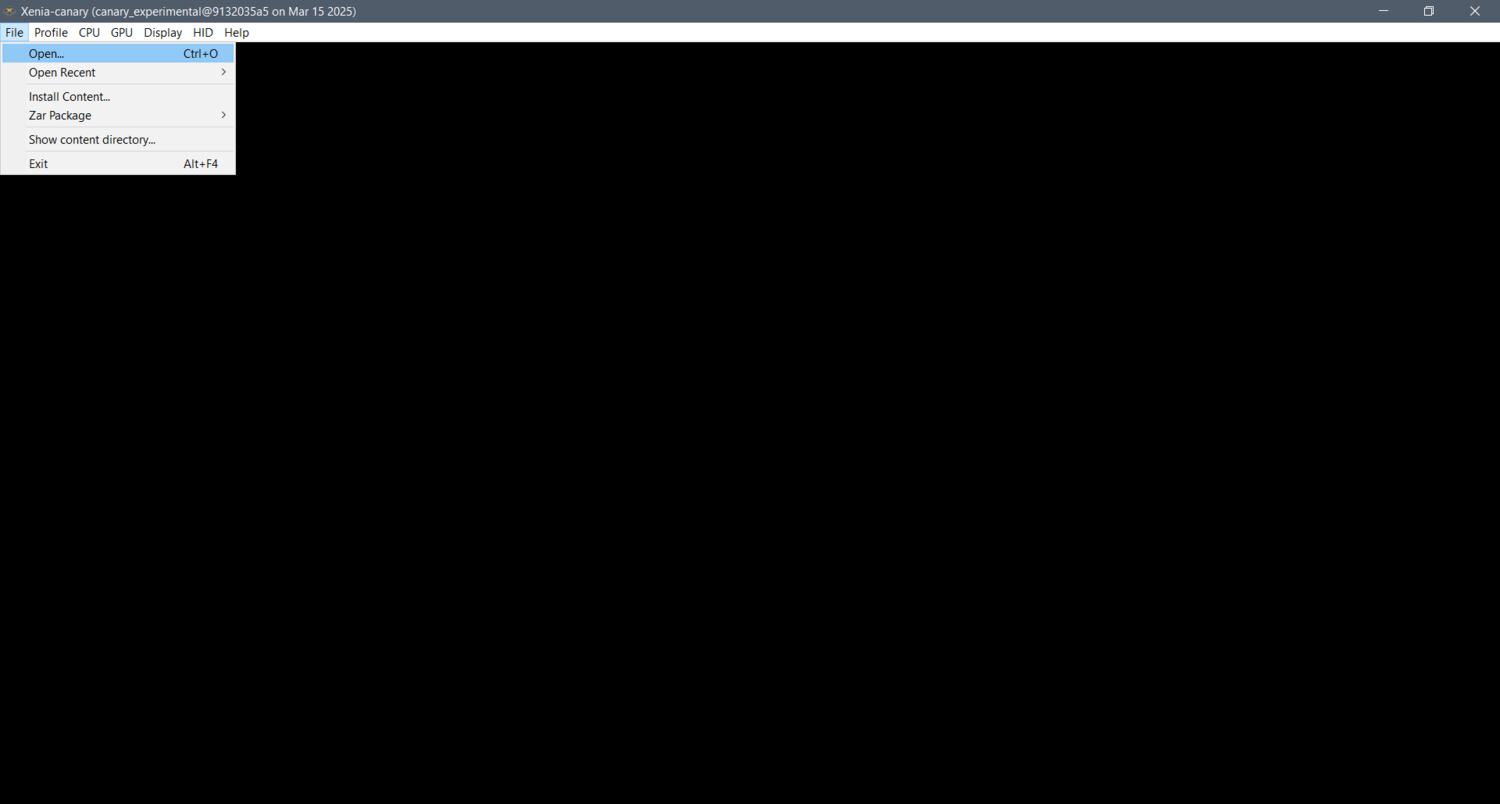
The game will begin loading. If the patches have been applied successfully, a corresponding message will appear at the top of the emulator window.

Controls
After launching the game, you may find that none of the controls work. Xenia assumes that you will be using a gamepad that supports Microsoft's widely used XInput standard. In simple terms, you need a controller compatible with Xbox and Windows; it does not have to be an official Microsoft controller. If you have one, simply connect its USB receiver, turn on the gamepad, and play.
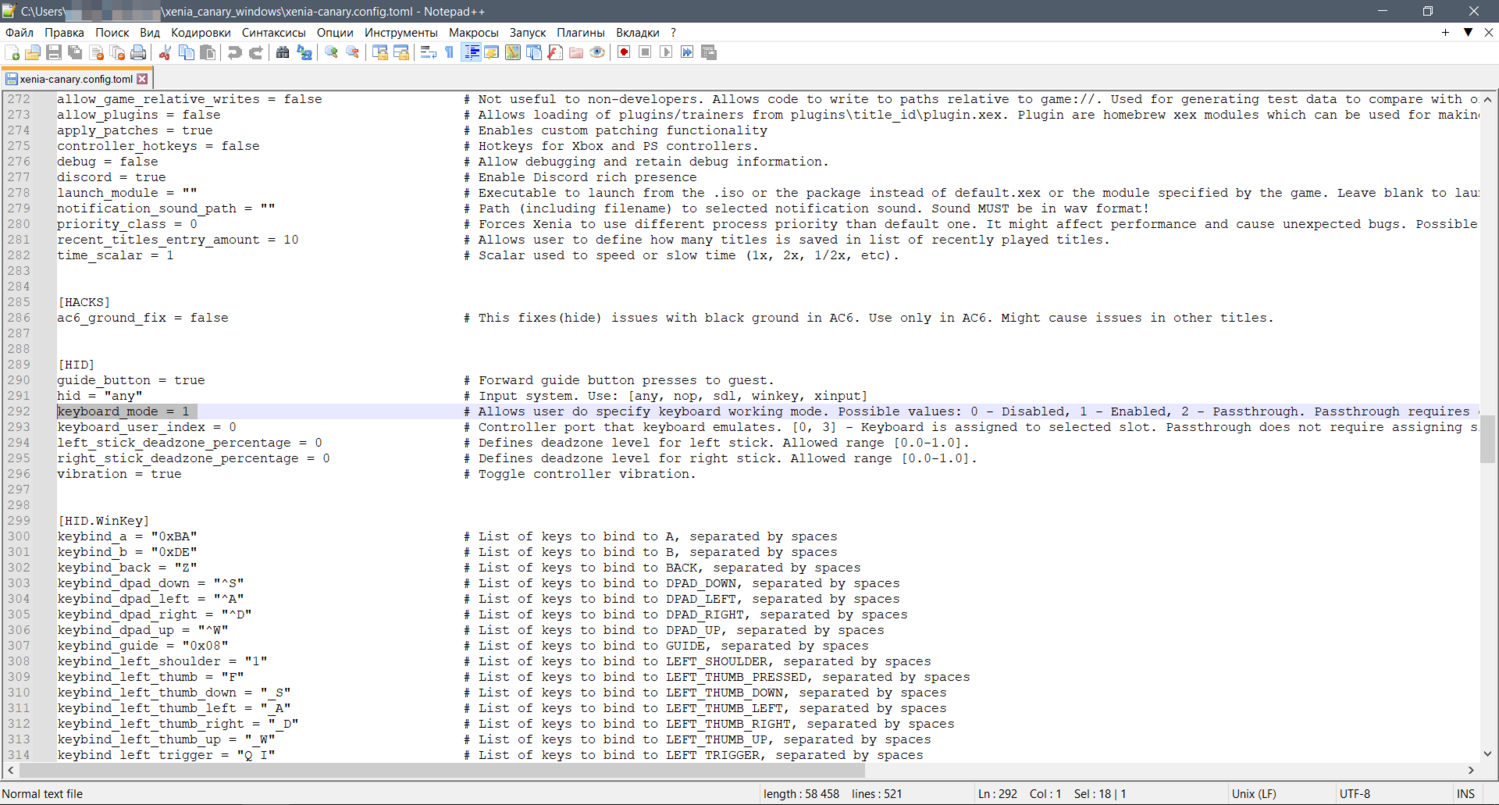
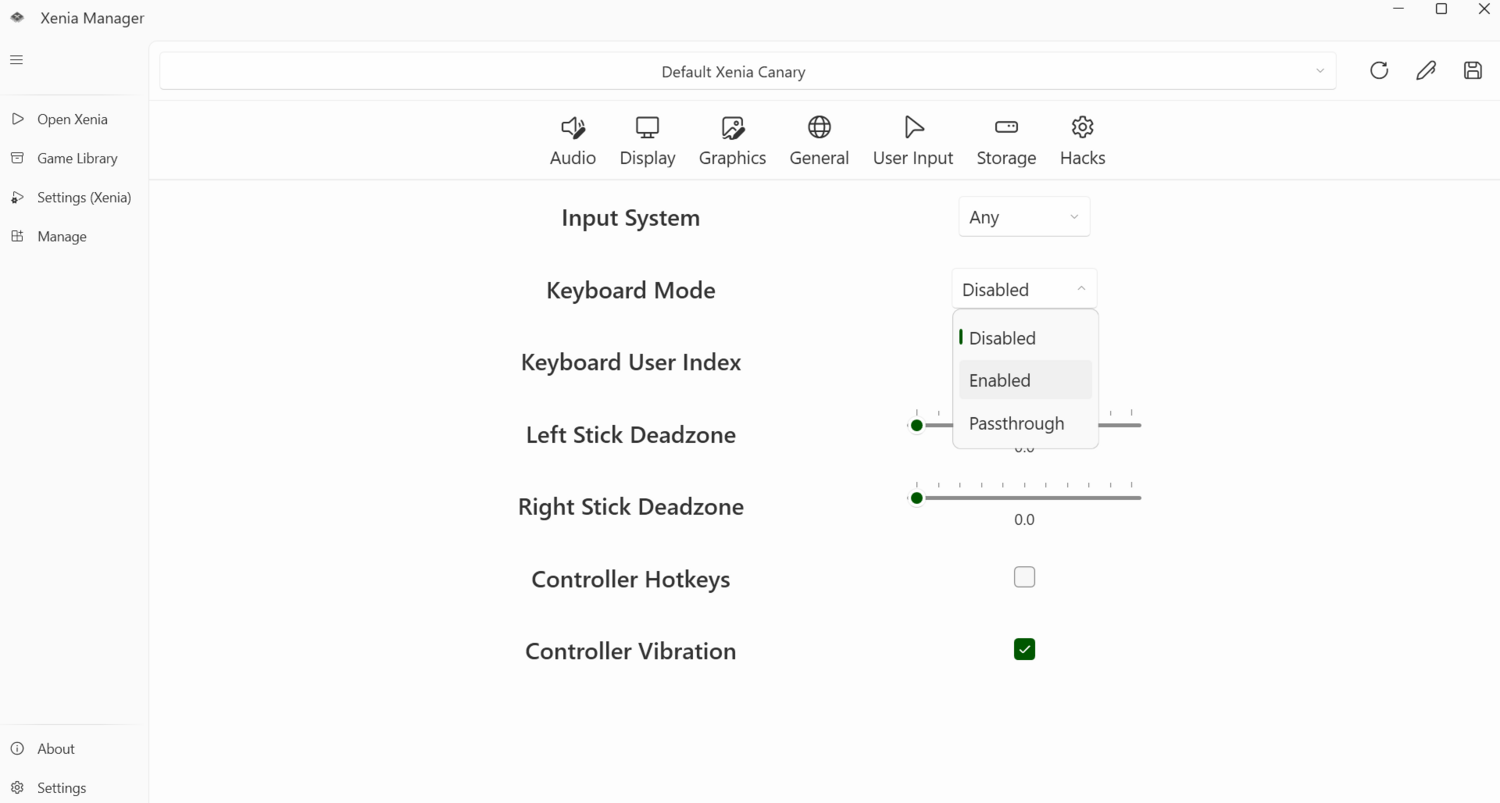
If you specifically want to play using a keyboard, you need to enable Xenia's "keyboard mode." To do this manually, open xenia-canary.config.toml again and change the keyboard_mode parameter from 0 to 1.
The same setting can also be changed through Xenia Manager.
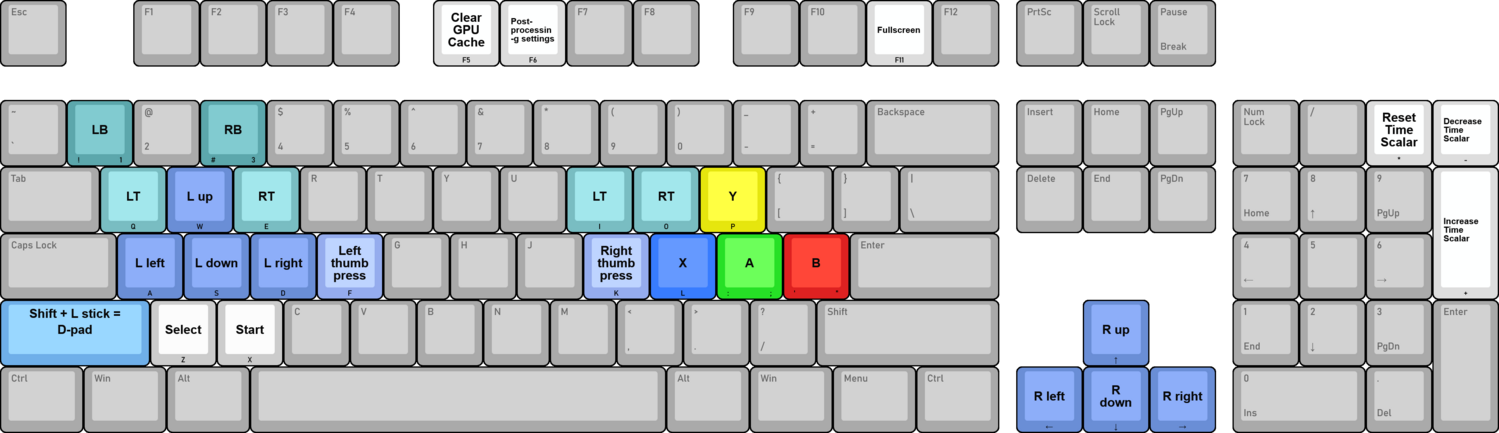
The default keyboard layout is shown in the image from the emulator's repository below.
There is also a third option: using a separate gamepad emulator to create your own keyboard mapping. This falls outside the scope of this guide.